> For the complete documentation index, see [llms.txt](https://docs.optibase.io/llms.txt). Markdown versions of documentation pages are available by appending `.md` to page URLs; this page is available as [Markdown](https://docs.optibase.io/features/general.md).
# General
***
If you are using Optibase with Webflow, please follow this guide instead: [Optibase Webflow App](/webflow-app/optibase-webflow-app.md)
***
Optibase needs just one thing to start working: the Optibase custom script installed on your site.
Once added, the script handles test logic, variant assignment, and conversion tracking automatically.
***
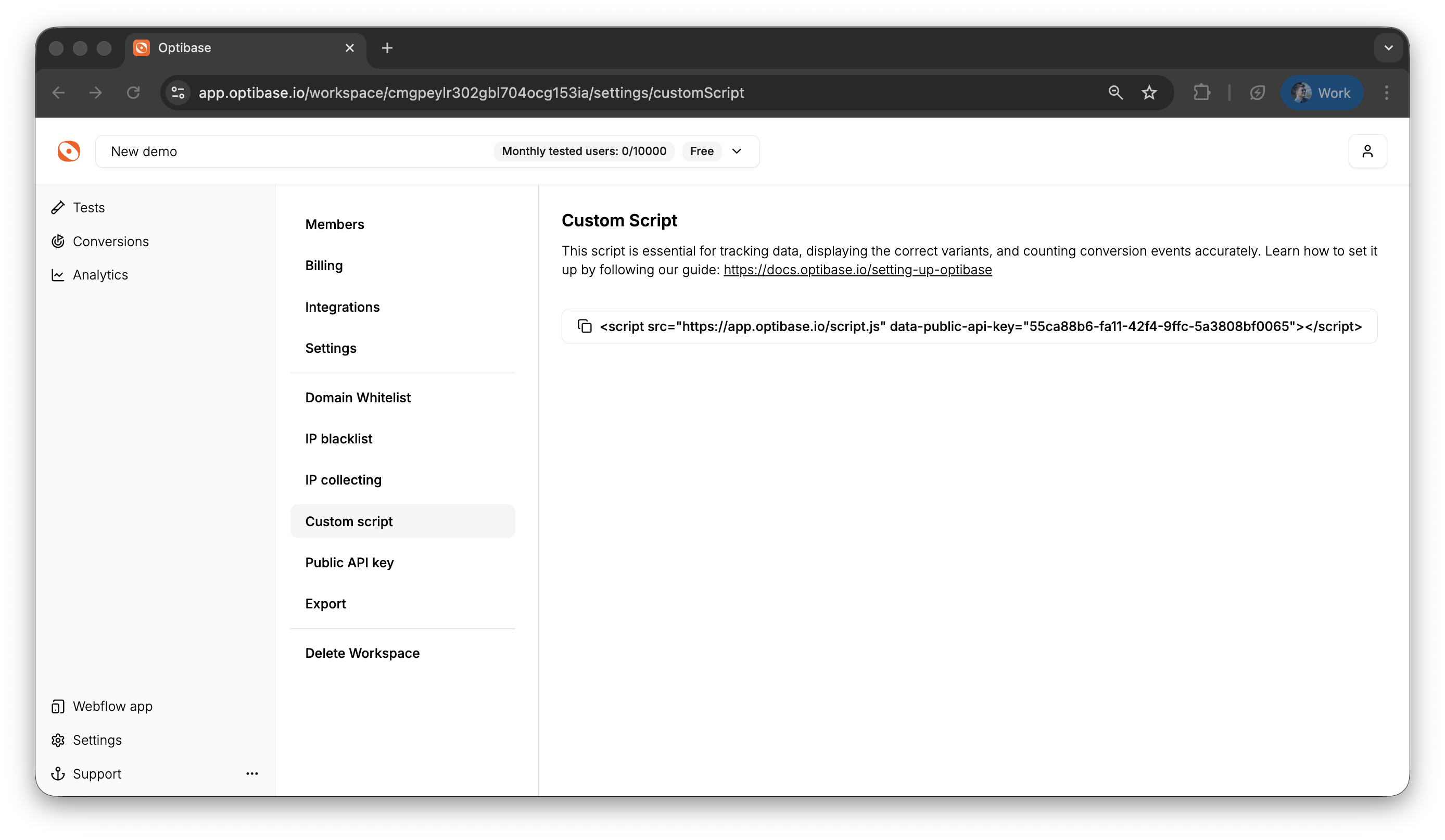
### 1. Get your custom script
1. Log in to your [Optibase dashboard](https://app.optibase.io)
2. Go to Workspace Settings
3. Copy the Custom Script provided for your workspace
***
### 2. Add the script to your website
Make sure:
* The script is placed before the closing \ tag
* It uses the correct data-optibase-id from your dashboard
* You only include one copy of the script per page
***
### 3. Verify the installation
After installation:
1. Open any page where the script is installed
2. Add ?optibaseEnableDebugMode to the URL
Example:
3. Open the browser console (right-click → Inspect → Console tab)
4. You should see debug logs from the Optibase script
If the script is working correctly, you’ll see messages about:
* Loaded test IDs
* Selected variants
* Conversion listeners
***
### 4. Start testing
Once the script is live:
* You can create A/B Tests, Split Tests, and Conversions from the Optibase dashboard
* All variant logic and tracking will run automatically for visitors
***