> For the complete documentation index, see [llms.txt](https://docs.optibase.io/llms.txt). Markdown versions of documentation pages are available by appending `.md` to page URLs; this page is available as [Markdown](https://docs.optibase.io/features/tests/create-a-split-variant.md).
# Create a Split Variant
*If you using Webflow then you should follow the guide here:* [Optibase Webflow App](/webflow-app/optibase-webflow-app.md)
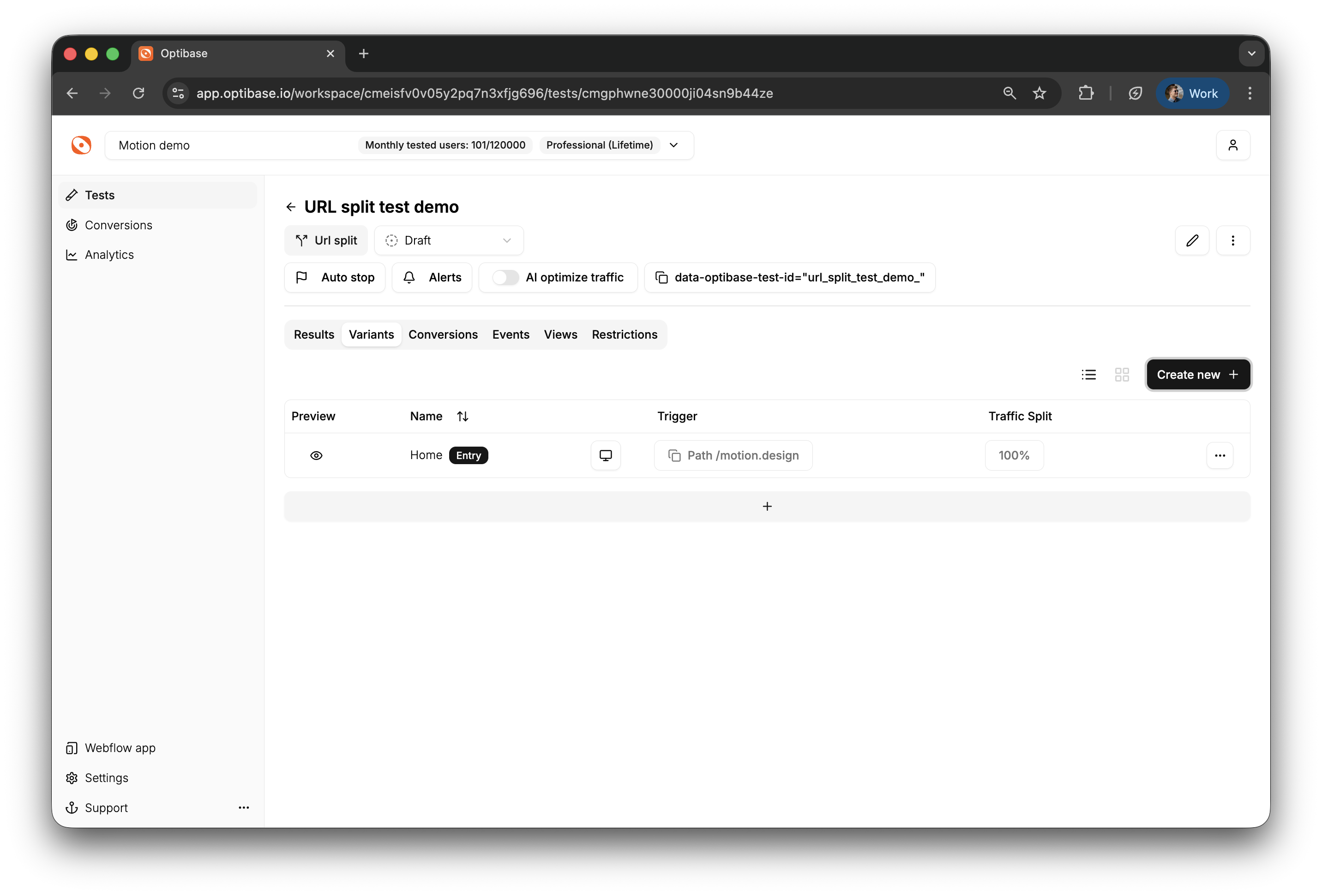
The first Variant you create in a Split Test will be the Entry Variant. An Entry Variant will be the entry to your Split Test. When a user lands on the Variant, they will either stay on the page or be redirected.
If a user lands on a non-entry Variant, they will not be redirected.
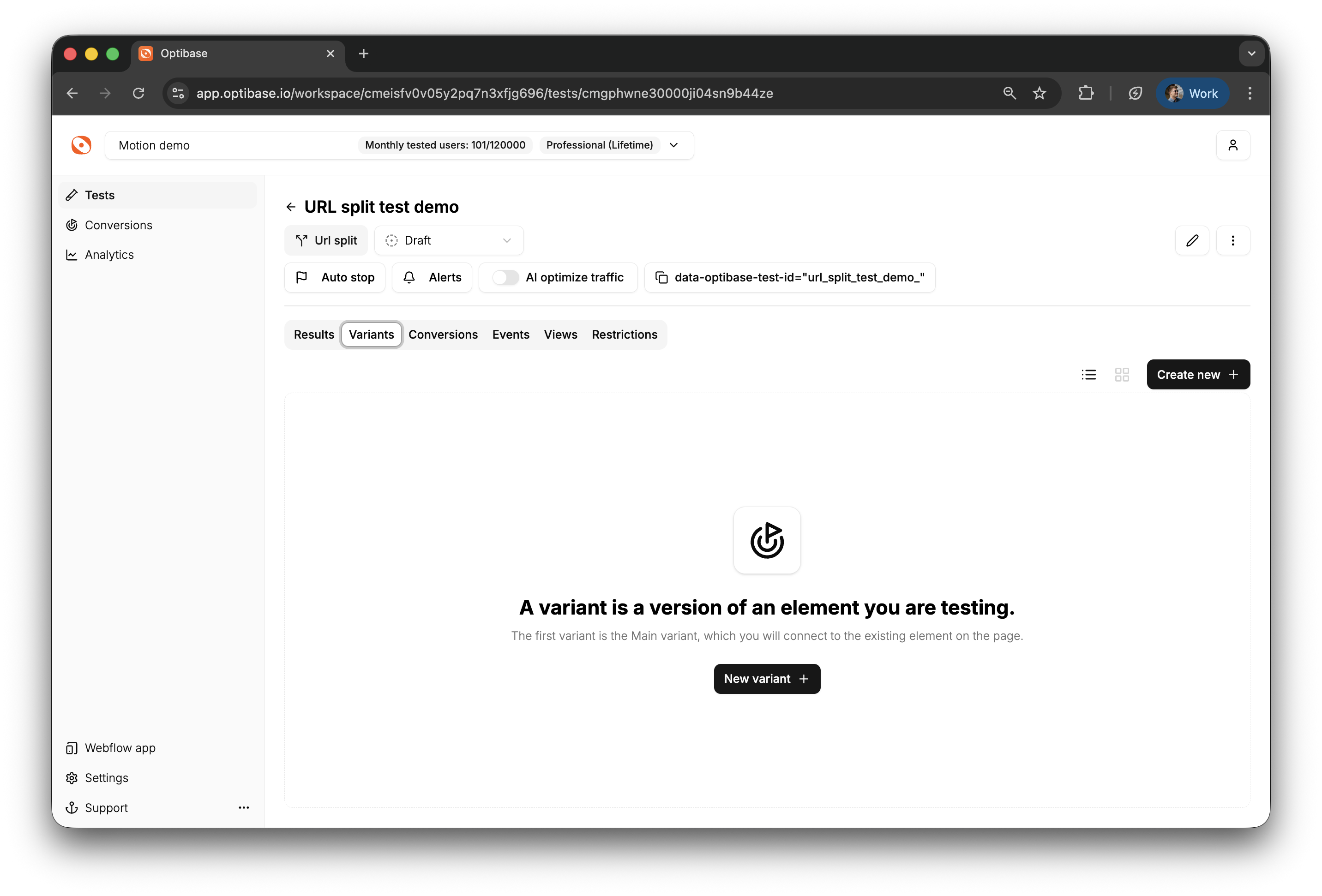
1. To set up a Variant, navigate to the page of the Split Test by clicking on it on the "Tests" page:
2. Click on the "New variant" button:
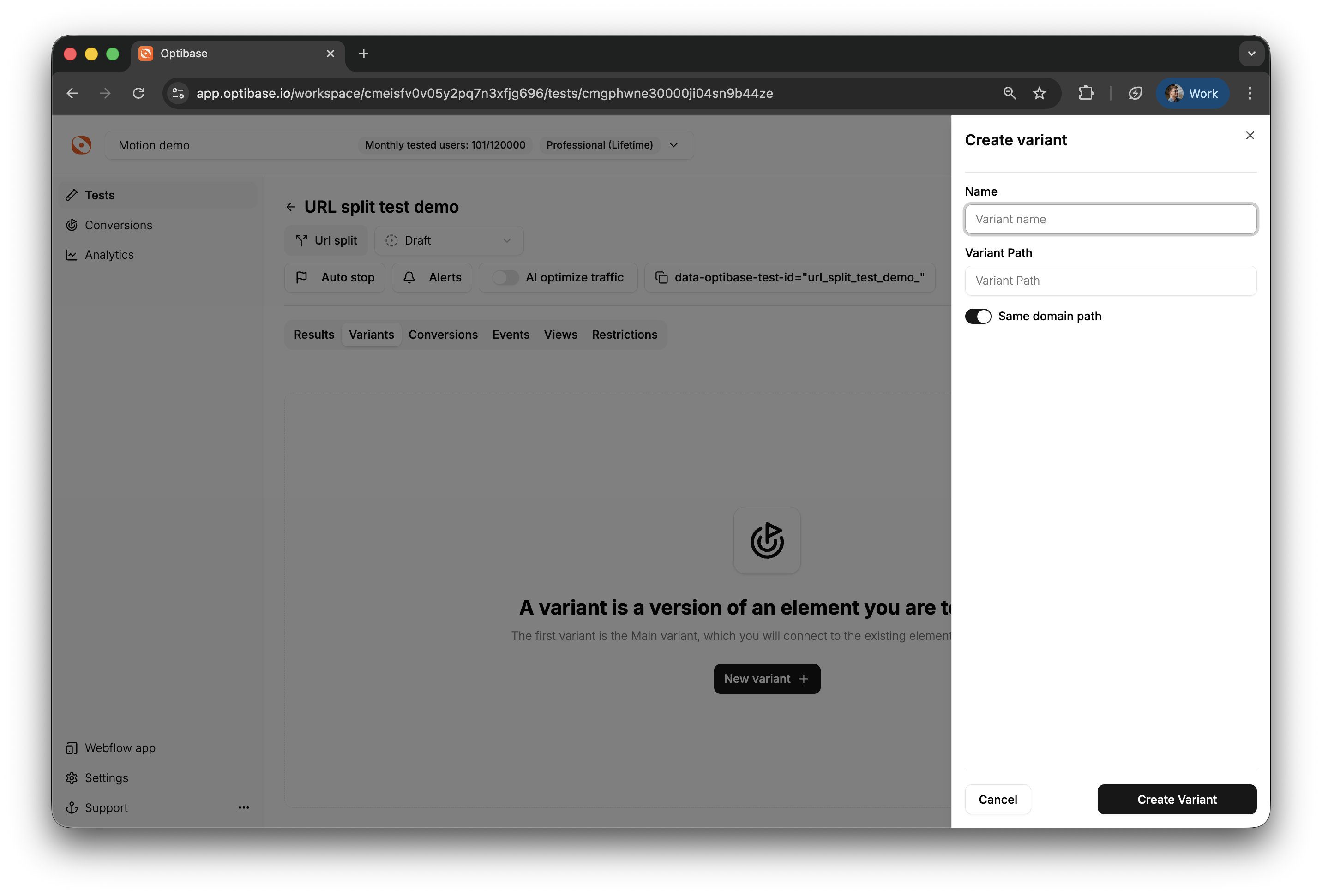
3. Name your variant and define the Variant URL. If you are performing the Split Test on a single domain and will not be redirecting the user to a different domain, you can select the "Same domain path" option. If you select this option, you should only define the Path, not the whole URL.\
\
Example URL: `https://example.com/landing`\
Example Path: `/landing`
A Split Variant doesn't need to be connected to any HTML elements on your page. When a user lands on a website, the custom script you have added to your website will check that URL/Path and handle the Split Tests.
*Note:* By clicking on the Variant you can:
* Change the name and URL of the Variant.
* Reset the Variant Conversion Events and Page Views.
* Delete the Variant.
*Note: Currently you can not stop showing a Split Variant to the users without deleting it. This is a feature that is coming soon.*