> For the complete documentation index, see [llms.txt](https://docs.optibase.io/llms.txt). Markdown versions of documentation pages are available by appending `.md` to page URLs; this page is available as [Markdown](https://docs.optibase.io/features/tests/create-a-test-variant-group.md).
# Create a Test/Variant Group
*If you using Webflow, then you should follow the guide here:* [Optibase Webflow App](/webflow-app/optibase-webflow-app.md)
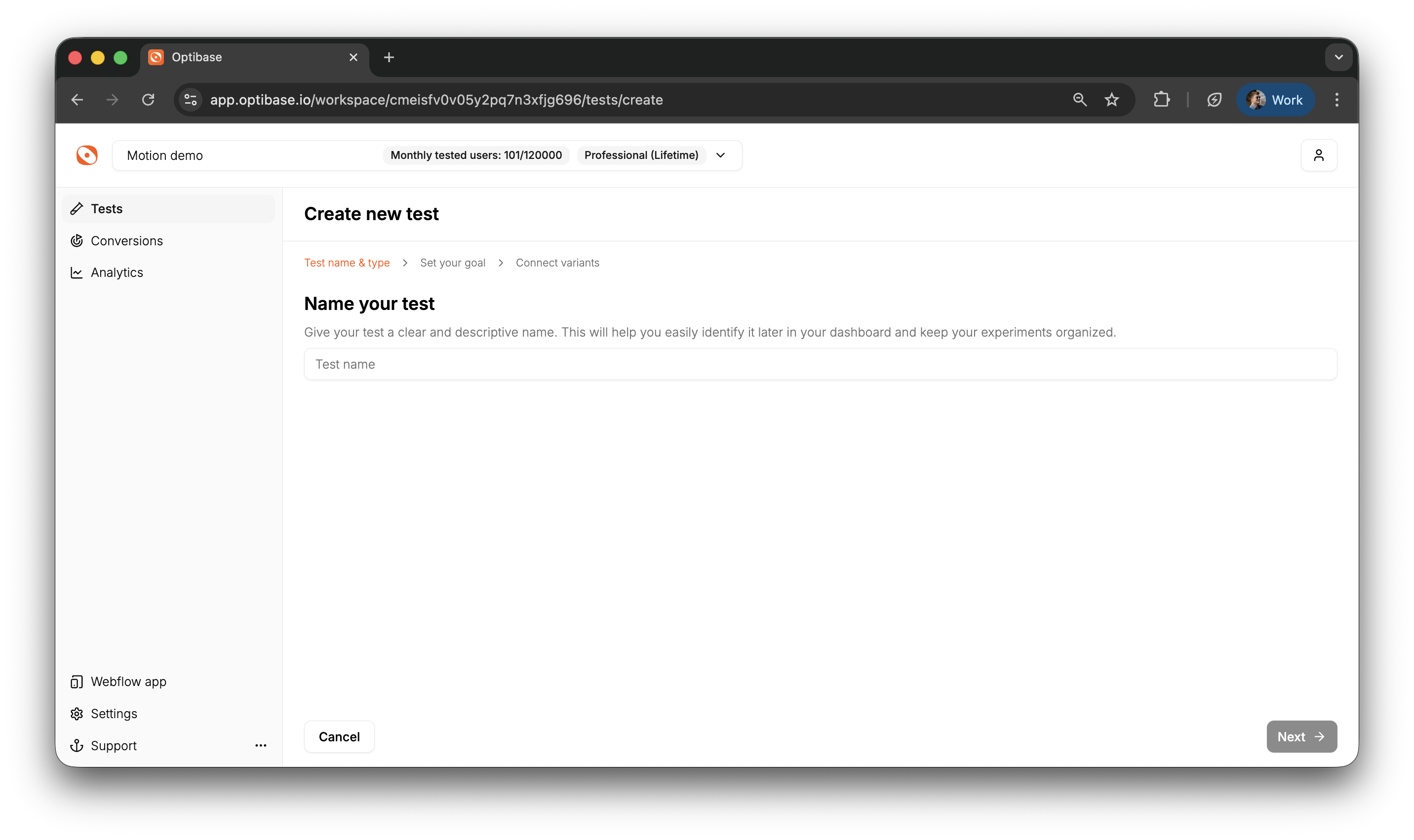
To run an A/B Test, Split Test, or Multivariate Test in Optibase, you first need to create a Test — this is where you define what you’re testing, how, and under which conditions.
### How to create a Test
1. Go to the Tests page from the left-hand menu
2. Click the New Test button in the top-right corner
3. Enter a name for your test
4. Select a Test Type:
* A/B Test (Variant Group)
* Split Test (URL-based)
* Multivariate Test
5. Click Create
***
### Multivariate Test Setup
If you’re creating a Multivariate Test, you’ll need to define one or more Variant Groups.
Each Variant Group:
* Represents one element on the page you want to test
* Functions like a mini A/B Test inside the larger Multivariate structure
For each element you want to test:
1. Create a Variant Group
2. Add at least two Variants (e.g. headline A vs. headline B)
Optibase will automatically generate all combinations of variants across the Variant Groups to test how different changes perform together.
***
### Managing Test Status
You can change the status of a test from the top-right corner of the test page.
* Draft – The test is not live and won’t run
* Active – The test is live on your website
* Paused – The test is temporarily stopped but not deleted
A test must be set to Active for it to appear on your site and for variants to be shown to users.
***
### Create Variants
After creating a test, you’ll need to define the actual Variants that users will see.
* A/B Variants: [Create an A/B Variant](/features/tests/create-an-a-b-variant.md)
* Split Variants: [Create a Split Variant](/features/tests/create-a-split-variant.md)
***
### Audience Restrictions
You can control who sees your test by setting optional restrictions. These are configured in the test sidebar or under Test Settings.
#### Supported restriction types:
* Location (Geo-Restriction)
Limit test visibility to users from specific countries or regions. Useful for localized campaigns or regional content testing.
* Screen Size
Show the test only on certain viewport widths. Ideal for running desktop-only or mobile-only tests.
* Operating System
Target users based on their OS, such as Windows, macOS, iOS, or Android.
* Browser
Run tests only in selected browsers (e.g. Chrome, Safari, Firefox, Edge). Helpful when testing browser-specific issues or styles.
These restrictions ensure your tests run only for the relevant audience — improving data quality and control.
***
### Test Settings
Inside the Settings tab of your test, you can:
* Change the test name
* Delete the test
* Review or update all restriction rules