> For the complete documentation index, see [llms.txt](https://docs.optibase.io/llms.txt). Markdown versions of documentation pages are available by appending `.md` to page URLs; this page is available as [Markdown](https://docs.optibase.io/features/tests/create-an-a-b-variant.md).
# Create an A/B Variant
*If you using Webflow then you should follow the guide here:* [Optibase Webflow App](/webflow-app/optibase-webflow-app.md)
*How to connect an A/B Variant:* [Connect an A/B Variant](/features/tests/connect-an-a-b-variant.md)
A/B Variants are different versions of an element that you want to test on the same page.
They’re used in both A/B Tests and Variant Groups (inside Multivariate Tests).
### How to create an A/B Variant
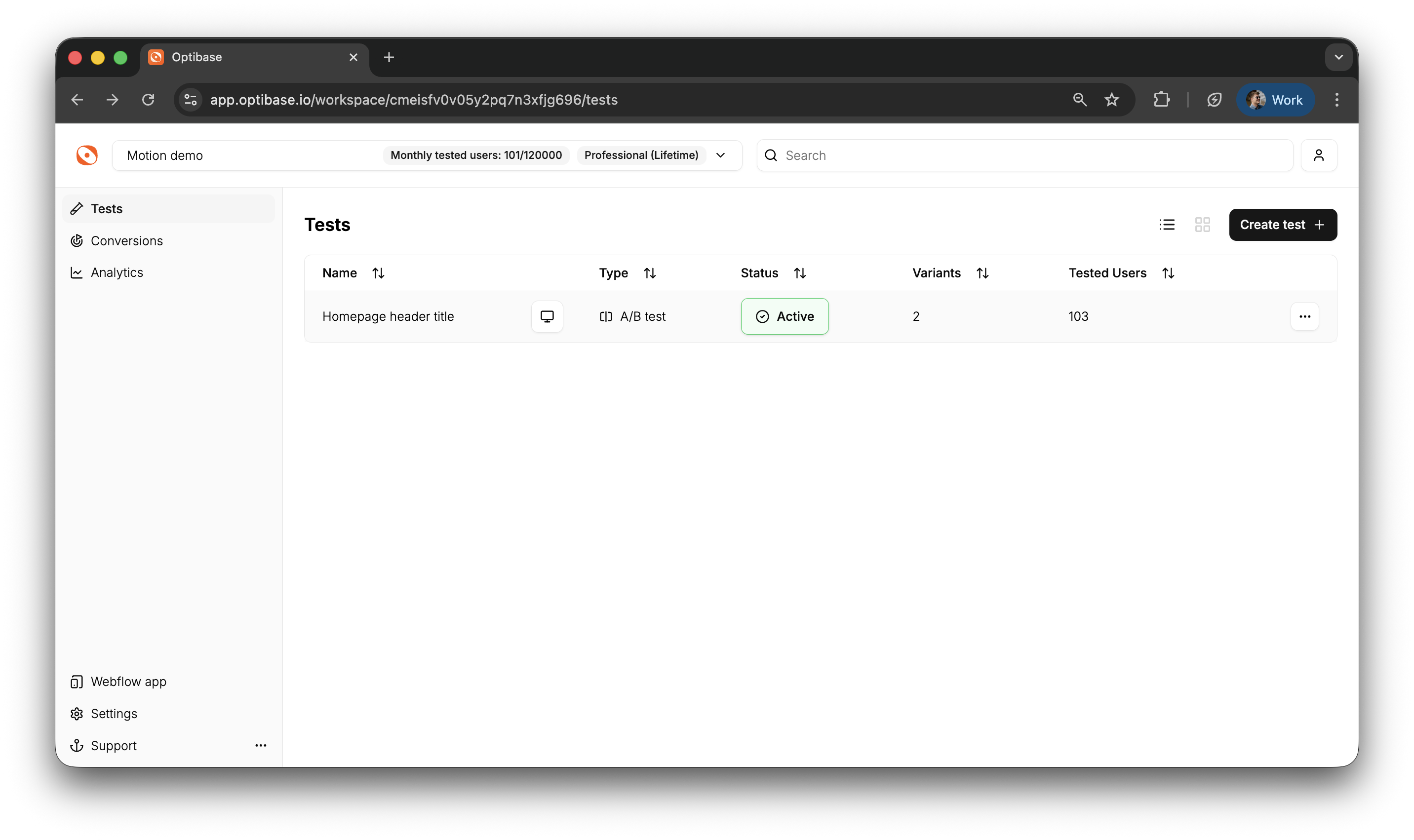
1. Go to the Tests page
2. Click on the A/B Test you want to add a variant to
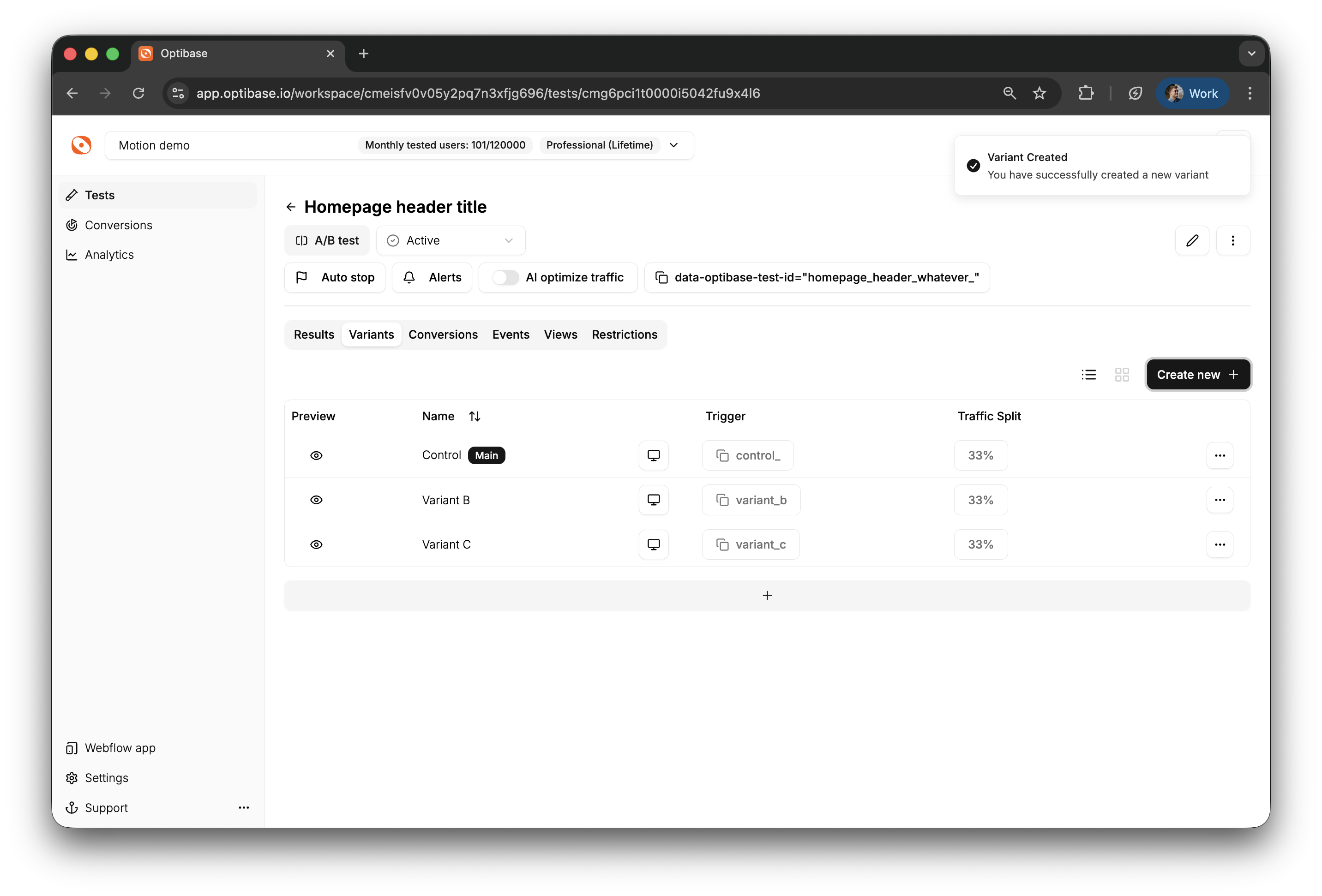
3. On the test page, click the New Variant button
4. Enter a name for your variant
5. Click Create\
Once created, the variant will appear in the list under that test.
***
### Connect the variant to your website
You should now connect this Variant to an element on your page. Read about how to do that here: [Connect an A/B Variant](/features/tests/connect-an-a-b-variant.md)
To display the variant on your site, you need to connect it to a specific HTML element.
Each element must be tagged with both:
* data-optibase-test-id
* data-optibase-variant-id
Optibase will automatically:
* Show one variant to each user
* Remove all other variants from the page
* Track which version the user saw
***
### Variant options and actions
Clicking on a variant gives you several management options:
* Rename the variant
* Reset its conversion and page view data
* Delete the variant entirely
* Disconnect the variant (stops showing it to users but keeps the data)
> Use disconnect if the variant is underperforming but you still want to analyze its historical results.
***
### Variant performance metrics
Each variant tracks the following automatically:
* Page Views: How many times the variant was shown to users
* Conversions: How many conversion events were triggered while this variant was active
* Conversion Rate: Shown in parentheses (Conversions / Page Views)
* P2BB: [Probability to Be Best (P2BB)](/features/tests/probability-to-be-best-p2bb.md)The probability this variant is the top performer based on Bayesian stats
You can filter conversion performance using the “Filter by conversion” dropdown above the results.