> For the complete documentation index, see [llms.txt](https://docs.optibase.io/llms.txt). Markdown versions of documentation pages are available by appending `.md` to page URLs; this page is available as [Markdown](https://docs.optibase.io/features/conversions/create-a-conversion.md).
# Create a Conversion
*If you using Webflow then you should follow the guide here:* [Optibase Webflow App](/webflow-app/optibase-webflow-app.md)
*How to connect a Conversion:* [Connect a Conversion](/features/conversions/connect-a-conversion.md)\
\
To measure the impact of your tests, you’ll need to create and configure conversions — actions that indicate success, like form submissions, button clicks, or page views.
❗️If you’re using Webflow, follow this guide instead:
👉 Setting up Conversions in Webflow
***
### How to create a Conversion
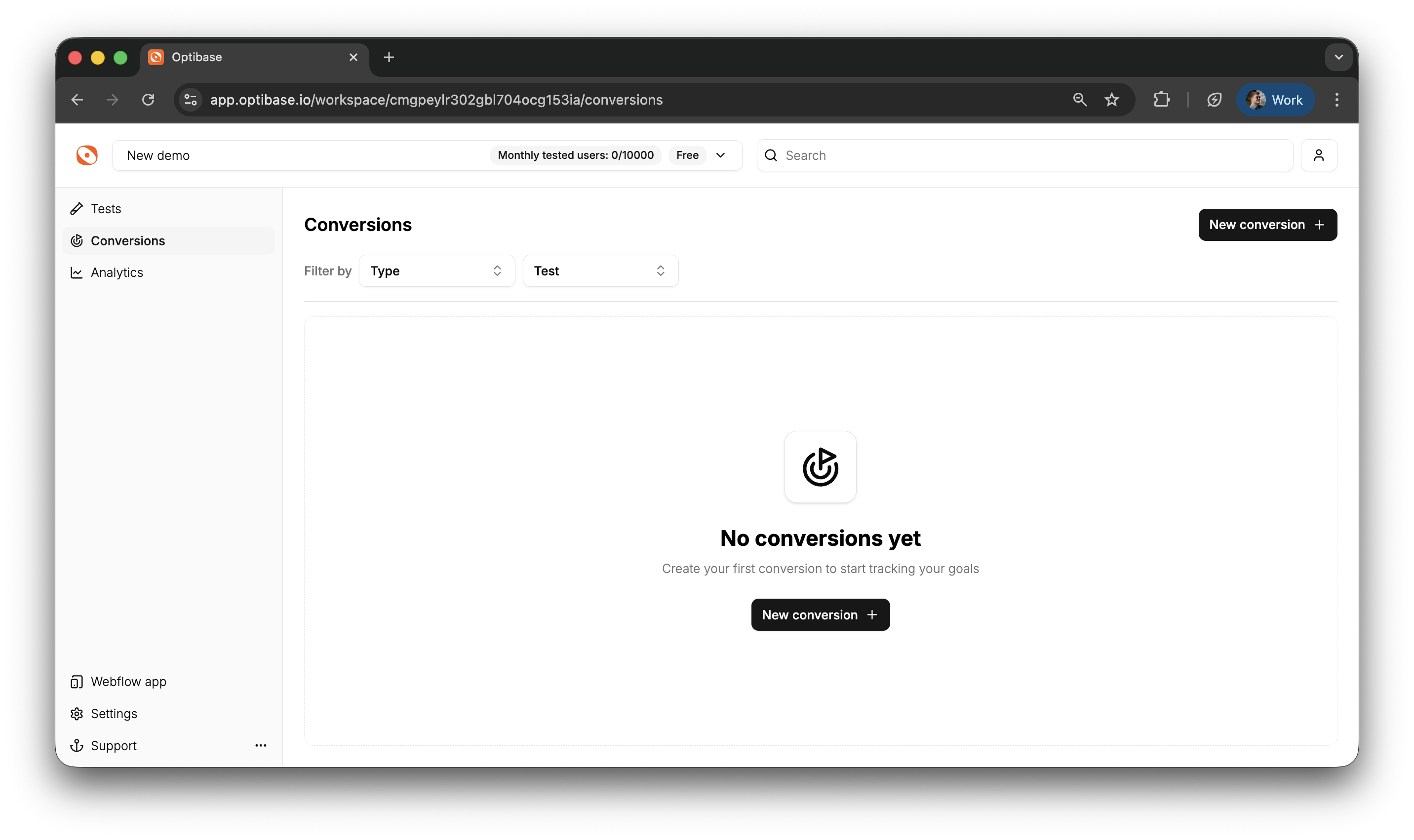
1. Go to the Conversions page from the left-hand menu in your Optibase dashboard
2. Click the New Conversion button in the top-right corner
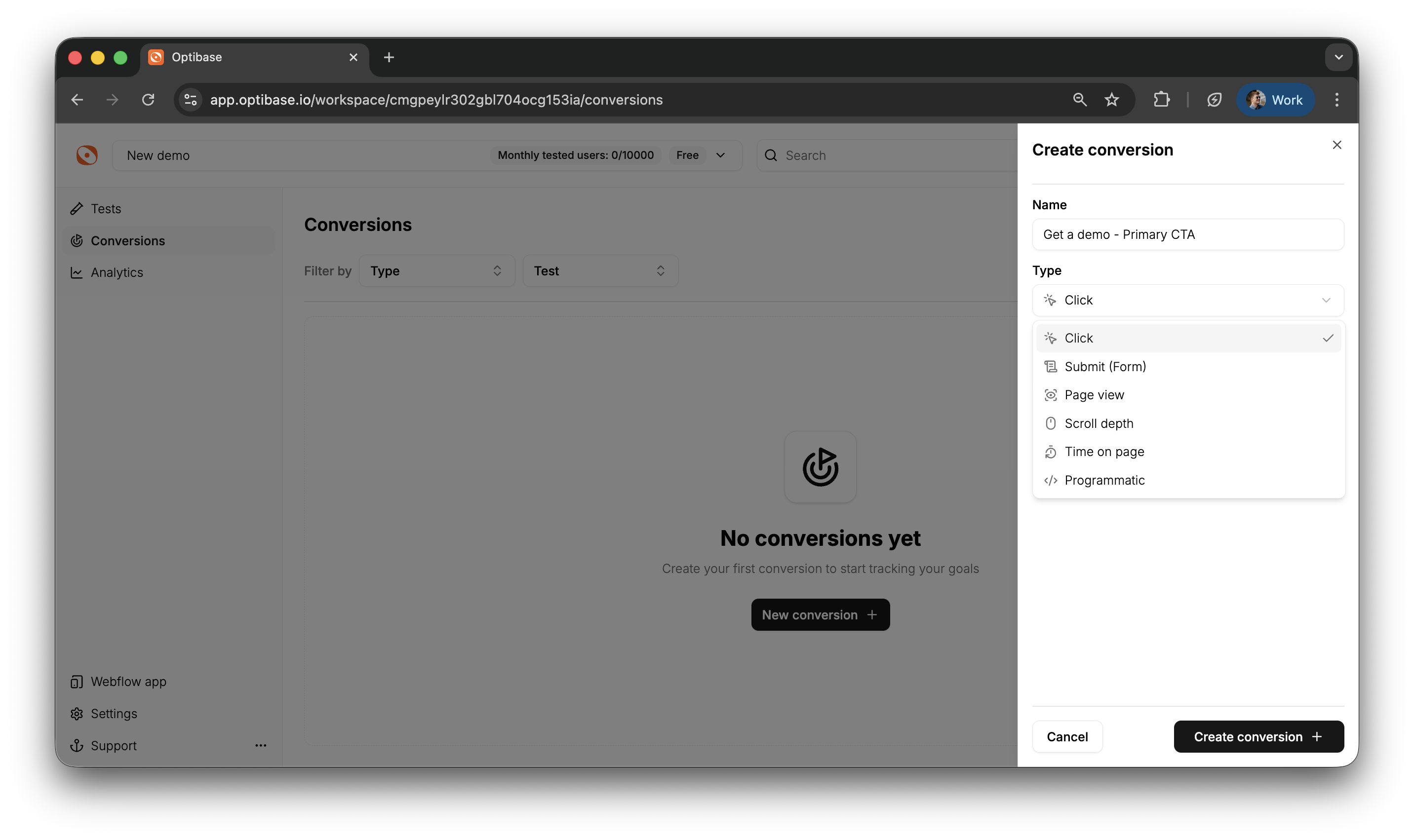
3. Give your conversion a clear name
4. Choose a Conversion Type from the following:
***
#### Conversion Types
**Page View**
Track when users load a specific URL.
You’ll need to:
* Enter the exact URL (or pattern) where the conversion should trigger
**Scroll Depth**
Track how far down a page users scroll.
You’ll need to:
* Set the target URL
* Choose the scroll depth (in percentage or pixels) that should trigger the event
**Time on Page**
Track how long users stay on a specific page.
You’ll need to:
* Set the target URL
* Define the minimum time (in seconds) that qualifies as a conversion
**Click**
**(requires connection to a page element)**
Tracks clicks on a specific button, link, or element.
**Submit**
**(requires connection to a page element)**
Tracks when a user submits a form.
> After you create a Click or Submit conversion, you’ll need to connect it to an element on your page.
**Programmatic**
Trigger a conversion manually using JavaScript or from your server.
Use this when:
* You want to track custom user actions that aren’t tied to page structure
* You need to fire conversions from backend logic or 3rd-party tools
To trigger the conversion, use this function in your frontend code:\
`optibaseSendConversionEvent(userFriendlyConversionId)` JavaScript function.\
\
You can also trigger this conversion in two other ways:\
\
You can set up a Programmatic Conversion with Google Tag Manager: [Trigger Conversions with GTM](https://docs.optibase.io/integrations/trigger-conversions-with-gtm)
You can also trigger this conversion from the server: [Server-side Conversions](https://docs.optibase.io/how-to-setup-optibase/server-side-conversions)
***
### Managing Conversions
Once a conversion is created, you can click on it to:
* Edit its values (e.g. URL, scroll depth, time)
* Delete it if it’s no longer needed
You can reuse the same conversion across multiple tests or assign different conversions to different test goals.